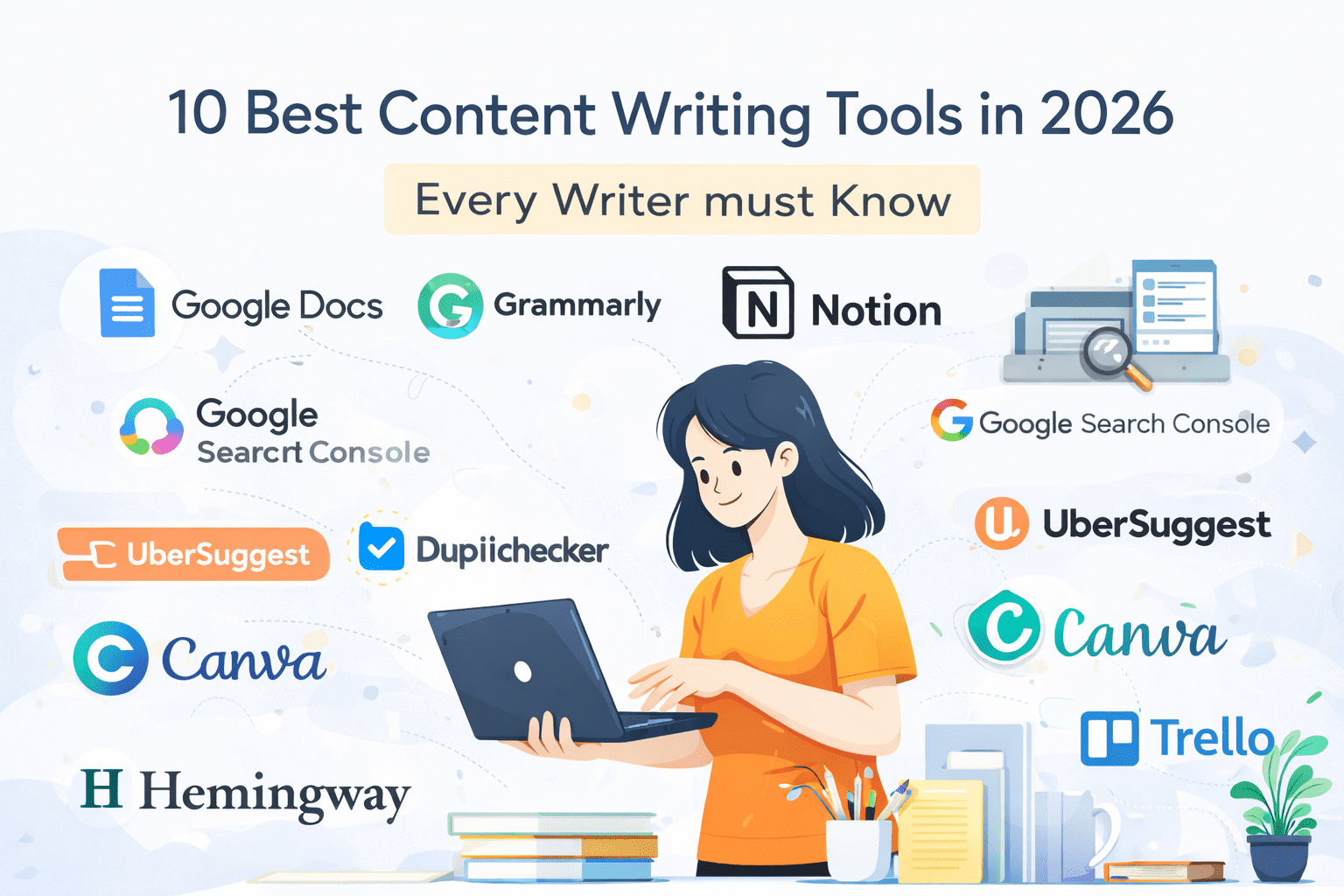
10 Best Content Writing Tools in 2026
Why Every Content Writer Needs the Right Tools
Let me be honest with you.
When I started content writing, I thought all I needed was a laptop, decent English, and a cup of chai. I was wrong — and the first time a client rejected my article for “poor readability and zero SEO structure,” I realized something important: talent alone won’t get you far in this industry.
The writers who consistently rank on Google, land high-paying clients, and publish content that actually gets read — they’re not necessarily more talented. They’re just better equipped.
Whether you’re a student in Jaipur building your portfolio, a freelancer in Mumbai juggling five clients, or a blogger trying to get that first AdSense approval — the right tools will save you hours, sharpen your writing, and make your content impossible to ignore.
This guide covers 10 must-know content writing tools in 2026, broken down honestly — with personal experience, real use cases, and a clear verdict on whether the free version is worth it.
SEO Tools for Content Writers
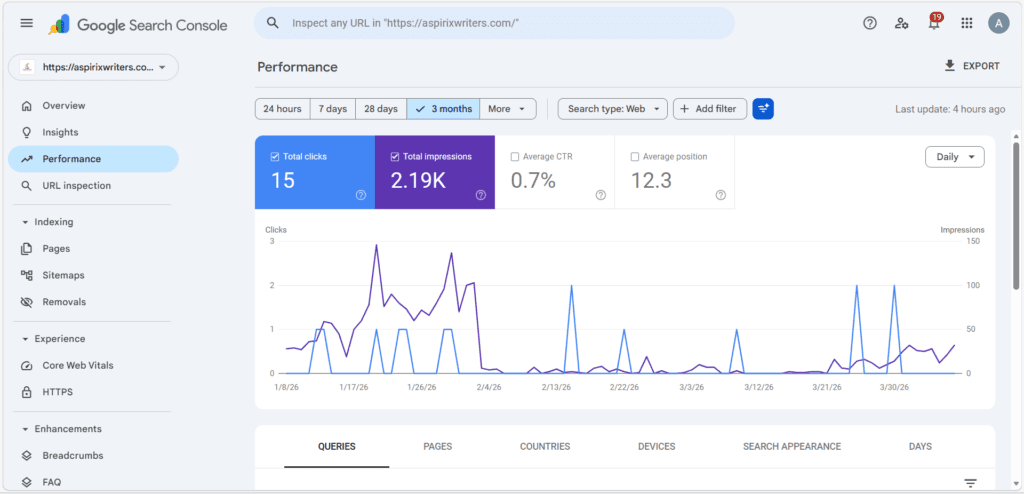
1. Google Search Console
What it is: A free tool by Google that shows you how your website and content performs in search results — what keywords you rank for, how many clicks you get, and which pages need improvement.
Why it matters: In my experience, beginners ignore this tool completely — and then wonder why their blog isn’t growing. Google Search Console is literally Google telling you what’s working and what isn’t.
How I use it: Every week, I check the “Performance” tab to spot queries where I’m ranking on page 2. Those are my quick-win opportunities — I update the content, add a few lines, and usually see movement within 2–3 weeks.
Key Features:
- Search performance report (clicks, impressions, CTR)
- Index coverage — shows pages Google has or hasn’t indexed
- Core Web Vitals report
- Mobile usability insights
Pros:
- 100% free
- Direct data from Google
- Identifies low-hanging fruit keywords
Cons:
- 3-day data delay
- Not great for competitor research
Who should use it: Every blogger and content writer with a website. No exceptions. Free vs Paid: Completely free.
2. Ubersuggest
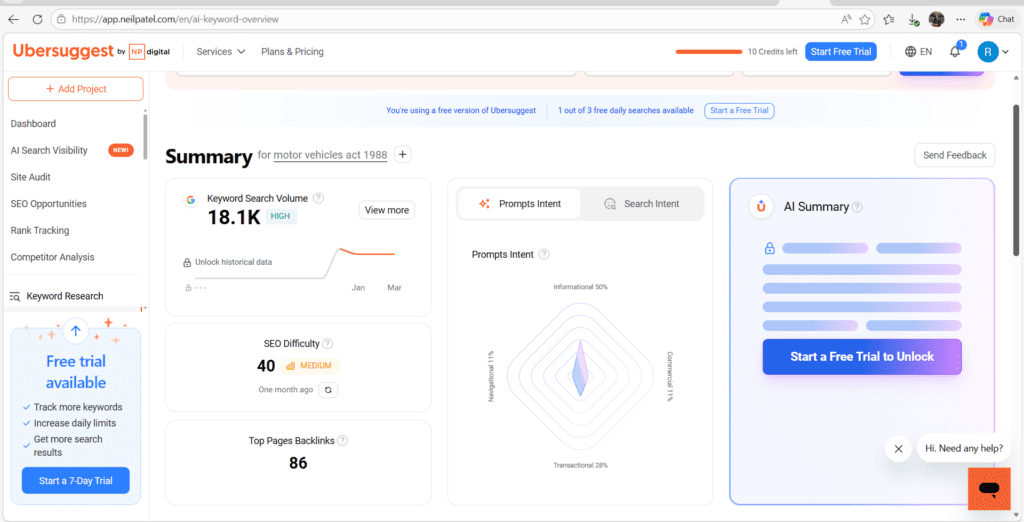
What it is: A keyword research and SEO analysis tool that gives you keyword ideas, search volume, competition data, and content suggestions.
Why it matters: Before writing any article, I always check Ubersuggest to confirm — is anyone actually searching for this? You’d be surprised how many writers spend 3 hours on an article that gets zero traffic because they skipped keyword research.
How I use it: I type my topic idea into Ubersuggest, look at the keyword difficulty score, and find 3–5 related long-tail keywords with decent volume and low competition. Then I build my article around those.
Key Features:
- Keyword ideas with search volume and CPC
- Competitor content analysis
- Backlink checker
- Content ideas (shows top-performing articles for any keyword)
Pros:
- Generous free plan
- Very beginner-friendly interface
- Great for finding long-tail keyword ideas
Cons:
- Data isn’t always as accurate as Ahrefs or SEMrush
- Free plan has daily limits
Who should use it: Beginner to intermediate bloggers and freelancers who don’t want to pay ₹15,000/month for SEMrush. Free vs Paid: Free plan is sufficient for most beginners. Paid starts at ~$12/month.
Writing & Grammar Tools
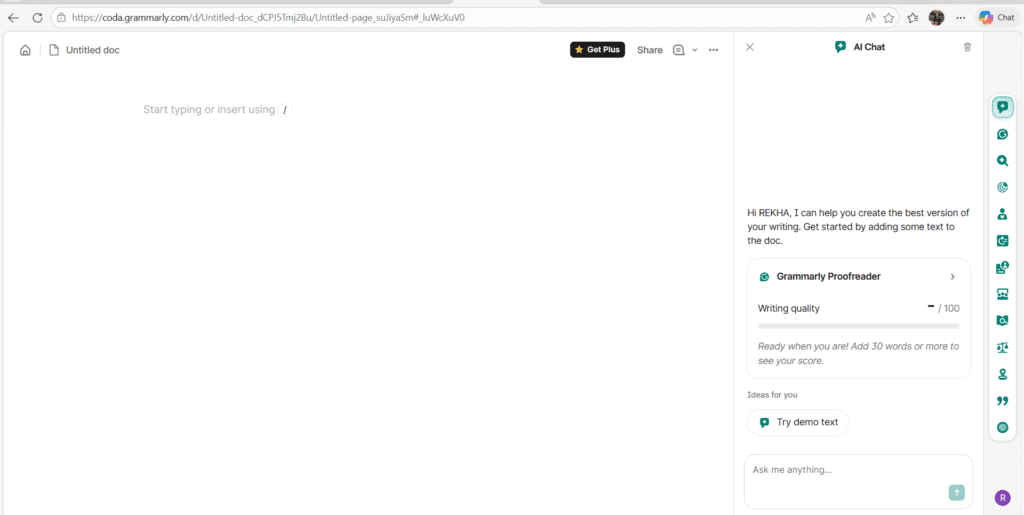
3. Grammarly
What it is: An AI-powered writing assistant that checks grammar, spelling, punctuation, clarity, tone, and even plagiarism.
Why it matters: I personally use Grammarly on every single piece of content before I submit or publish it. Even after years of writing, I still catch 5–10 small errors per article. No shame — it happens to everyone.
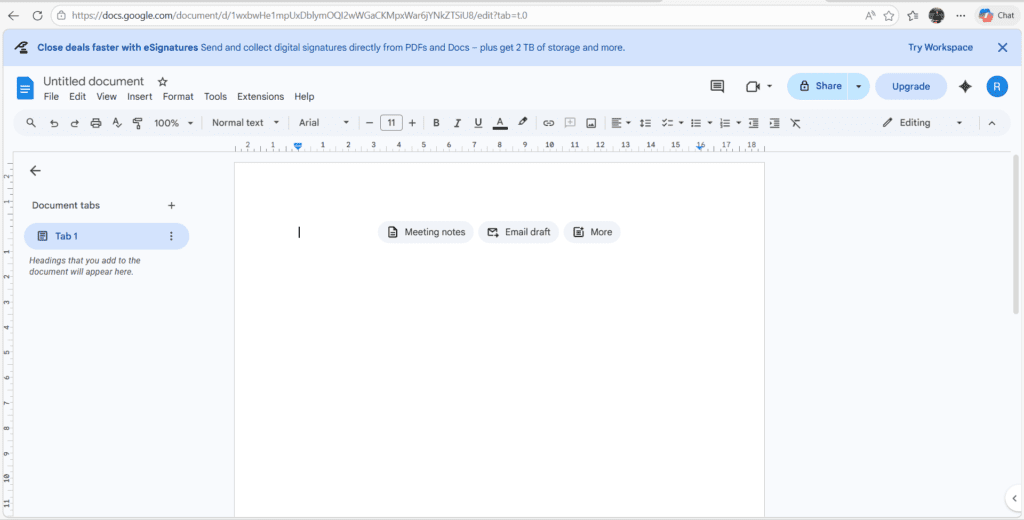
How I use it: I write my first draft freely in Google Docs, then run it through Grammarly’s editor. I pay attention especially to its “clarity” and “engagement” suggestions — those have genuinely improved my writing style over time.
Key Features:
- Real-time grammar and spelling corrections
- Tone detection
- Readability and engagement score
- Plagiarism checker (Premium)
- Browser extension (works in Gmail, WordPress, LinkedIn)
Pros:
- Works everywhere — browser, desktop app, Google Docs
- The free version catches most critical errors
- Teaches you as you write (you start making fewer mistakes)
Cons:
- Sometimes over-corrects and changes your natural voice
- Plagiarism checker only in Premium
- Premium is expensive at ~₹1,000–₹1,500/month
Who should use it: All writers — beginners to professionals. Free vs Paid: Free version handles 80% of use cases. Upgrade only if you need plagiarism checks or advanced tone analysis.
4. Hemingway Editor
What it is: A readability-focused editor that highlights complex sentences, passive voice, adverb overuse, and hard-to-read paragraphs.
Why it matters: When I first used Hemingway Editor on my writing, I was humbled. About 30% of my sentences were marked “hard to read.” The tool showed me that I was writing for myself — not for the reader.
How I use it: After Grammarly, I paste my draft into Hemingway. I aim for a Grade 6–8 readability score. This doesn’t mean dumbing down — it means writing clearly. That’s actually harder than writing complex sentences.
Key Features:
- Highlights sentences that are hard/very hard to read
- Flags passive voice
- Marks unnecessary adverbs
- Readability grade score
- Distraction-free writing mode
Pros:
- Free web version available at hemingwayapp.com
- Trains you to write simpler, punchier sentences
- Excellent for blog posts, emails, and landing pages
Cons:
- Doesn’t check grammar
- Can feel too aggressive with flagging creative writing
- Desktop app costs a one-time $19.99
Who should use it: Anyone who wants their content to be easier to read — especially bloggers targeting broad audiences. Free vs Paid: Web version is free and fully functional.
Research & Ideation Tools
5. Google Trends
What it is: A free Google tool that shows the popularity of any search term over time — and compares trends across regions and time periods.
Why it matters: In my experience, content that rides trending topics gets significantly more traffic than evergreen content — at least in the short term. Google Trends helps me time my articles right.
How I use it: Before writing a seasonal or news-adjacent article, I check Google Trends to see if interest is rising or falling. For example, writing about “income tax filing tips” in February beats writing it in October.
Key Features:
- Real-time and historical search trend data
- Region-wise breakdown (great for Indian audience targeting)
- Related queries and rising topics
- YouTube search trends
- Compare up to 5 keywords
Pros:
- Completely free
- Excellent for seasonal content planning
- Region-specific data (very useful for India-focused blogs)
Cons:
- Shows relative popularity, not exact search volume
- Not useful for evergreen keyword research
Who should use it: Bloggers, news writers, and anyone planning a content calendar. Free vs Paid: 100% free.
6. AnswerThePublic
What it is: A visual keyword research tool that shows you all the questions, comparisons, and prepositions people use when searching for a topic.
Why it matters: This tool literally shows you what your audience is thinking. The “People Also Ask” section on Google? AnswerThePublic has hundreds of those questions for any topic.
How I use it: I type in my main keyword and pull out 8–10 real audience questions. Then I weave those questions into my article as H3 subheadings or FAQ sections. This is one of the fastest ways to boost relevance and ranking.
Key Features:
- Visual “wheel” of questions, prepositions, and comparisons
- Downloadable CSV of keyword ideas
- “versus” and “can/will/are” question formats
- Search listening alerts (Pro)
Pros:
- Free plan available
- Brilliant for FAQ sections and blog ideation
- Great for understanding user intent
Cons:
- Free plan has limited daily searches
- Can feel overwhelming with too many results
Who should use it: Bloggers, content strategists, and SEO writers. Free vs Paid: Free plan gives you 3 searches/day. Pro at ~$9/month if you need more.
Content Planning & Productivity Tools
7. Notion
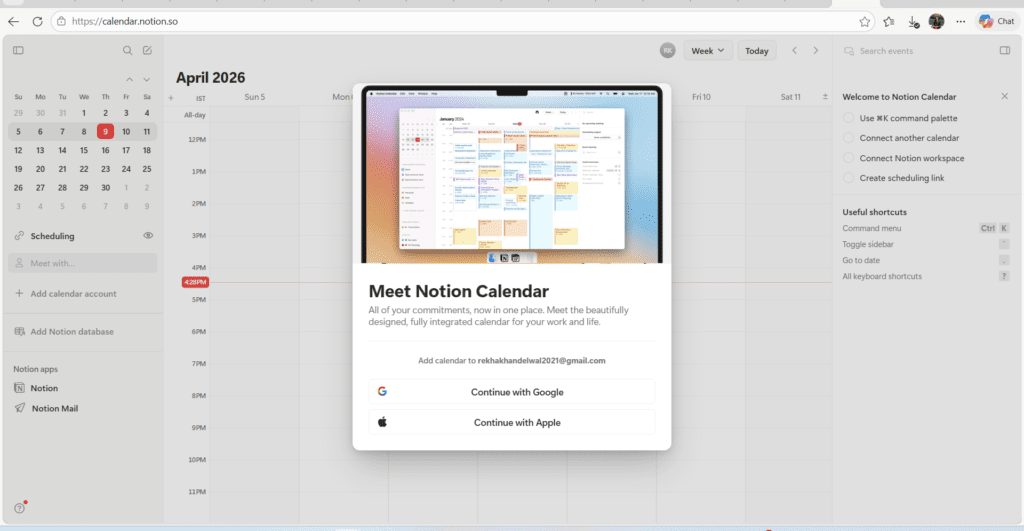
What it is: An all-in-one workspace where you can manage your content calendar, store research notes, draft outlines, and track client projects.
Why it matters: Before Notion, my research notes were scattered across WhatsApp, Google Keep, random Docs, and sticky notes. I was constantly losing ideas and missing deadlines. Notion brought everything into one place.
How I use it: I maintain a “Content Hub” in Notion with a database of all my blog ideas — with columns for keyword, status (idea/outline/draft/published), target date, and word count. Every idea I have goes here immediately.
Key Features:
- Flexible databases (kanban, calendar, list, gallery views)
- Linked pages and nested notes
- Templates for content calendars, editorial trackers
- Team collaboration
- AI writing assistant (Notion AI)
Pros:
- Free plan is very generous
- Highly customizable
- Works brilliantly for solo writers and teams
- Available as mobile app (very handy)
Cons:
- Learning curve can feel steep initially
- Can become disorganized if not maintained
Who should use it: Freelancers, bloggers, and content teams. Free vs Paid: Free plan handles most personal use. Plus plan at $8/month for advanced features.
8. Trello
What it is: A kanban-style project management tool where you organize tasks using boards, lists, and cards.
Why it matters: When I was managing content for three different clients simultaneously, Trello saved me from missing a single deadline for 6 straight months. It’s visual, simple, and satisfying.
How I use it: I create a board per client with lists like “Brief Received → Research → First Draft → Review → Published.” Each article is a card that moves across the board. At a glance, I know exactly where every piece of content stands.
Key Features:
- Drag-and-drop kanban boards
- Due dates and reminders
- Checklists inside cards
- Attachments and labels
- Automation (Butler)
Pros:
- Extremely easy to use — no learning curve
- Free plan is very capable
- Great for freelancers managing multiple clients
Cons:
- Can feel too simple for complex projects
- Limited reporting features
Who should use it: Freelancers, solo bloggers, small content teams. Free vs Paid: Free plan is excellent. Paid from $5/user/month.
Design & Visual Tools
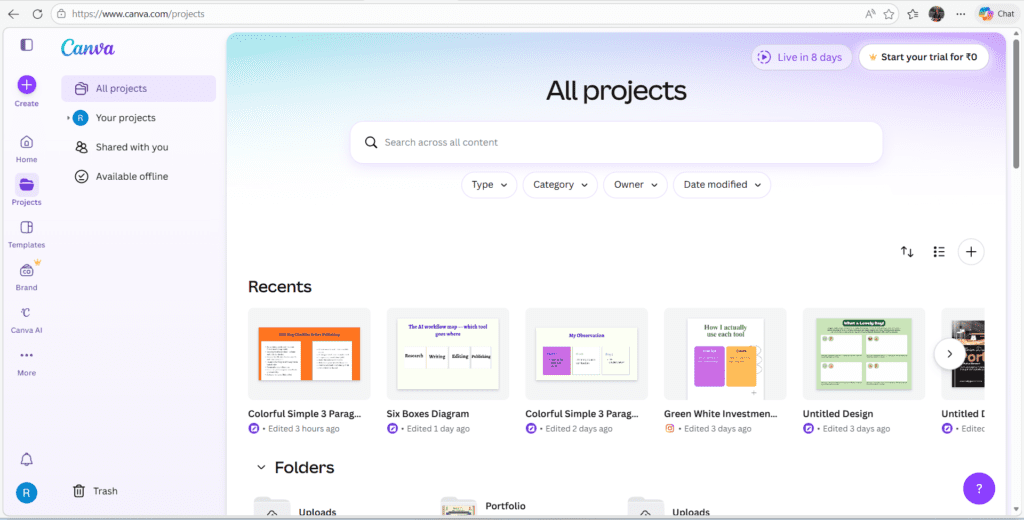
9. Canva
What it is: A drag-and-drop graphic design tool for creating featured images, infographics, social media posts, Pinterest pins, and blog banners — no design skills required.
Why it matters: A blog post without visuals gets significantly lower engagement. And let’s be honest — not all of us can afford a graphic designer. Canva democratized design for writers.
How I use it: I personally use Canva for every blog’s featured image and at least one infographic per post. I’ve even used it to create simple comparison tables that I screenshot and embed in articles.
Key Features:
- Thousands of templates for blogs, social media, presentations
- Brand Kit (logo, fonts, colours)
- Background remover (Pro)
- Magic Write AI tool
- One-click resize for different platforms
Pros:
- Very easy for non-designers
- Free plan has hundreds of templates
- Mobile app is excellent
- Indian-language font support
Cons:
- Best features (background remover, premium templates) are behind paywall
- Can look “templated” if you don’t customize
Who should use it: Every blogger and content writer. Period. Free vs Paid: Free plan is great. Pro at ~₹4,000/year — worth it if you publish regularly.
10. Duplichecker / Copyscape
What it is: Plagiarism checking tools that verify your content is original and not accidentally similar to anything already published online.
Why it matters: Before submitting to any client or publishing on your blog, a plagiarism check is non-negotiable. Even unintentional similarity can cost you a client or damage your site’s credibility.
How I use it: I run every article through Duplichecker (free) before submitting. If anything flags, I rewrite those sections. For premium clients, I use Copyscape’s paid version which is more thorough.
Key Features:
- URL-based and text-based plagiarism checks
- Similarity percentage report
- Batch checking (Copyscape Premium)
Pros:
- Duplichecker is free for basic use
- Peace of mind before publishing
- Builds trust with clients
Cons:
- Free versions have daily limits
- Copyscape can get expensive for high-volume writers
Who should use it: All writers — especially those working with clients or applying for AdSense. Free vs Paid: Duplichecker free plan works for most. Copyscape at $0.03/page for thorough checks.
Best Tools Based on Use Case
| Use Case | Best Tool |
|---|---|
| Keyword Research | Ubersuggest, Google Trends |
| Grammar Correction | Grammarly |
| Readability Improvement | Hemingway Editor |
| SEO Performance Tracking | Google Search Console |
| Content Ideation | AnswerThePublic |
| Content Planning | Notion, Trello |
| Visual Design | Canva |
| Plagiarism Check | Duplichecker, Copyscape |
Free vs Paid Tools — Honest Comparison
| Tool | Free Plan | Paid Plan | Worth Upgrading? |
|---|---|---|---|
| Google Search Console | ✅ Full access | — | Start here always |
| Grammarly | ✅ Good | ~₹1,200/month | Only for plagiarism checks |
| Hemingway Editor | ✅ Web version | $19.99 one-time | Yes, if you write daily |
| Ubersuggest | ✅ Limited | ~$12/month | Yes for bloggers |
| Notion | ✅ Generous | $8/month | Only for teams |
| Trello | ✅ Capable | $5/user/month | Not necessary solo |
| Canva | ✅ Good | ~₹4,000/year | Yes for regular publishers |
| Duplichecker | ✅ Basic | Paid credits | Start free, upgrade later |
When I started, I used 100% free tools for the first 6 months — and they were completely sufficient. Paid tools are multipliers, not necessities. Master the free versions first.
My Personal Toolkit (What I Actually Use Daily)
Here’s my honest, no-fluff toolkit as of 2026:
- Google Docs — First draft, always
- Grammarly (free) — Every article before submission
- Hemingway Editor — When writing for broader audiences
- Ubersuggest — Keyword research before every article
- Google Search Console — Weekly performance review
- Notion — My content calendar and idea database
- Canva — Featured images and infographics
- AnswerThePublic — When I need FAQ section ideas
Total monthly cost: approximately ₹2,500–₹3,000. And most of that is just Canva Pro.
Common Mistakes Beginners Make with These Tools
1. Using Grammarly as a replacement for human editing. Grammarly will catch errors — but it won’t tell you if your argument makes sense, or if your article actually helps the reader. Always do a final read-through yourself.
2. Ignoring Google Search Console for months. Most beginners install it and forget it. This tool is goldmine of free data — review it at least once a week.
3. Keyword stuffing because they found a “high-volume” keyword. Using a keyword 20 times in 800 words is worse than not using it at all. Tools help you find keywords — your judgment determines how to use them.
4. Downloading 10 tools at once without mastering any. In my experience, one tool used deeply beats five tools used shallowly. Start with Grammarly + Google Search Console + Notion. That’s it.
5. Not using a plagiarism checker before publishing. Especially important if you use AI assistance for drafts. Always verify originality.
Tips to Use These Tools Effectively
- Follow a workflow: Research (Ubersuggest + AnswerThePublic) → Write (Google Docs) → Edit (Grammarly + Hemingway) → Optimize (Search Console + Rankmath) → Publish (Canva visuals ready)
- Don’t let tools slow you down. Write your first draft without any tool open. Edit after.
- Set a weekly “tools review” day. Check Search Console, update your Notion board, review pending Trello cards.
- Use keyboard shortcuts in Notion and Grammarly — they save more time than you’d expect.
- Combine tools for compound results. Use AnswerThePublic to find questions → Grammarly to clean your answers → Canva to turn the best insight into a Pinterest pin.
Frequently Asked Questions (FAQs)
Q1. Which content writing tools are best for absolute beginners?
Start with Grammarly (free), Google Docs, and Ubersuggest. These three cover writing quality, drafting, and keyword research — the core pillars of content writing.
Q2. Are free content writing tools enough for professional work?
Yes, for most beginners and even intermediate writers, free tools are more than adequate. Grammarly free, Hemingway web version, Google Search Console, and Notion’s free plan can take you very far.
Q3. Which tool is best for improving SEO in my writing?
Google Search Console for performance data, Ubersuggest for keyword research, and Yoast SEO (if you’re on WordPress) for real-time on-page SEO checks. Using all three together covers you end to end.
Q4. Do content writers in India really need paid tools?
Not at the start. Most Indian freelancers and bloggers can manage with free tools for the first year. When your income grows, upgrading Canva Pro and a plagiarism checker makes the most practical sense.
Q5. How many tools should a content writer use?
Honestly — four to six is a healthy number. More than that and you’re spending more time managing tools than writing content. Focus on mastering a few over collecting many.
Q6. Is Grammarly better than Hemingway Editor?
They serve different purposes. Grammarly is for grammar, spelling, and tone corrections. Hemingway is for readability and sentence structure. The best results come from using both — Grammarly first, then Hemingway.
Final Thoughts
The content writing landscape in 2026 is competitive — but it’s also incredibly rewarding for those who show up prepared.
You don’t need to use all ten tools from day one. Pick two or three, build them into your routine, and watch your writing get sharper, your articles start ranking, and your confidence as a writer grow steadily.
In my experience, the writers who grow fastest aren’t the ones with the most tools — they’re the ones who use the right tools consistently.
Start with what’s free. Upgrade when you’re ready. And never stop improving your craft.
References:
- Creating Helpful, Reliable, People-First Content | Google Search Central | Documentation | Google for Developers
- Google Search Console Help: https://support.google.com/webmasters
- Hemingway App: https://hemingwayapp.com
- Ubersuggest: https://neilpatel.com/ubersuggest