
Cluster Post 5 | Module 2: The Academic Writing Process
From Concept to Submission Series | 2026
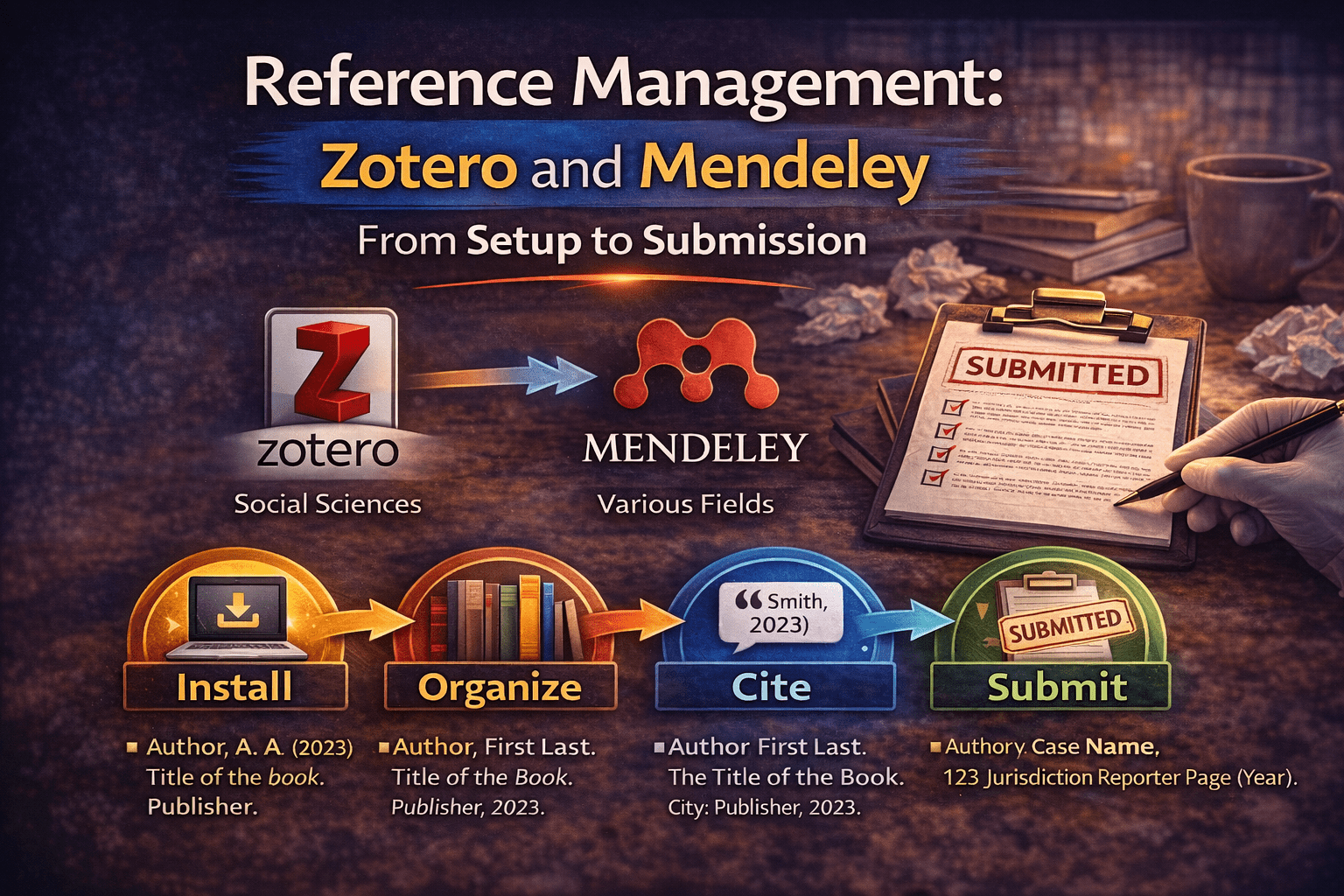
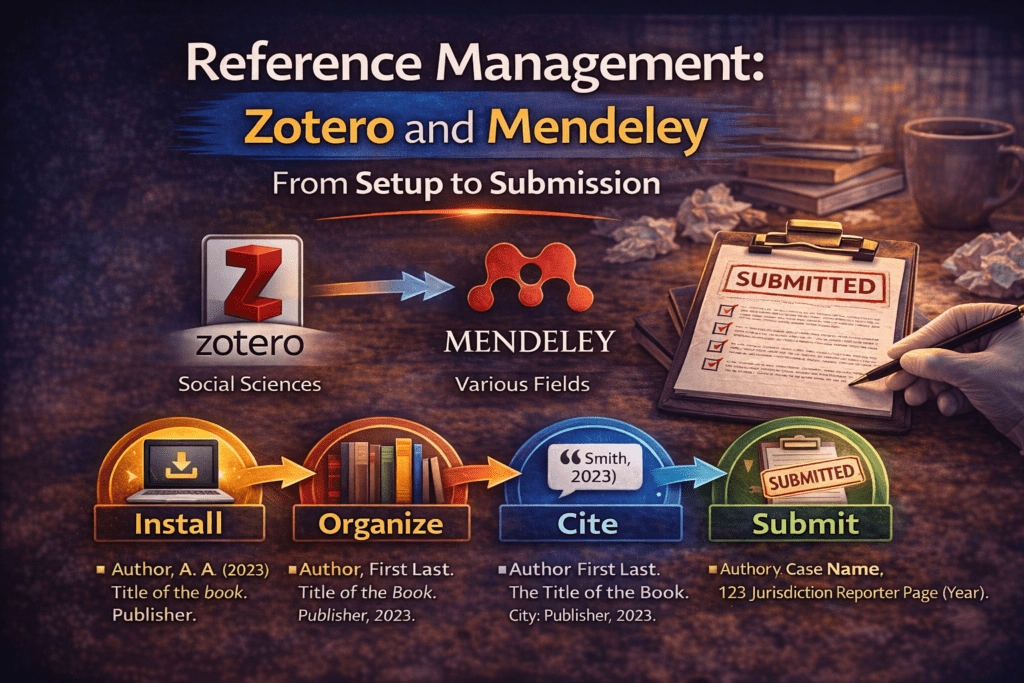
Reference Management: Zotero and Mendeley from Setup to Submission
The module overview introduced Zotero and Mendeley. This post goes deeper: a complete setup guide for both tools, how to organise your library so it stays useful at 500 sources, the specific cleaning tasks that prevent citation errors at submission, and how to handle the sources that reference managers get wrong most often.
Why Manual Citation Management Fails at Scale
When you have ten sources, managing citations manually is inconvenient. When you have a hundred, it is error-prone. When you have two hundred or more — which is normal for a PhD thesis — it becomes unmanageable, and the errors it produces are exactly the ones that get flagged in format reviews and examiner reports.
A source cited in the text but missing from the reference list. A reference in the list that was never cited. An author name spelled differently in two places. A journal name italicised in some entries and not others. A DOI present for some articles and absent for others with no clear logic. These are not signs of careless writing — they are the inevitable result of managing complex bibliographic data by hand across a document that changes hundreds of times during drafting and revision.
Reference management software solves all of these problems automatically. It stores your sources once, formats them correctly in whatever style you specify, keeps your in-text citations and reference list synchronised, and lets you switch citation styles across an entire document in thirty seconds. Learning to use it well is one of the highest-return investments you can make in your research workflow.
Zotero: Setup to First Citation
Zotero is free, open-source, and used by researchers at institutions worldwide. It has no meaningful feature limitations for academic use and is the tool most worth learning if you are starting from scratch.
Step 1: Install the three components
- Download Zotero desktop application from zotero.org — this is where your library lives.
- Install the browser connector for Chrome, Firefox, or Safari — this lets you save sources directly from journal websites and databases with one click.
- Install the Word or Google Docs plugin — this inserts citations and generates your reference list from within your document.
The three components work together. Without the browser connector, you add sources manually. Without the Word plugin, you copy citations manually. Both defeat the purpose of using the software.
Step 2: Save your first sources
Navigate to a journal article on any major academic database — JSTOR, Google Scholar, PubMed, SCC Online. You will see a small Zotero icon in your browser toolbar (usually looks like a page or folder). Click it. Zotero captures all the bibliographic information automatically — author, title, journal, volume, issue, pages, DOI — and saves it to your library. If a PDF is freely available, it downloads that too.
For sources that cannot be captured automatically — a physical book, a government report with no online version, a Supreme Court judgment — use the manual entry form in Zotero desktop. Select the source type from the dropdown (book, legal case, report), fill in the fields, and save. This takes two minutes and is far faster than formatting the citation by hand every time you need it.
Step 3: Insert a citation in your document
Open your document in Word or Google Docs. Place your cursor where the citation should go. In the Zotero toolbar, click Add/Edit Citation. A search bar appears — type the author name or a keyword from the title. Zotero finds the source, you press Enter, and the correctly formatted in-text citation appears at your cursor.
When your document is complete, click Add/Edit Bibliography — Zotero generates the entire reference list in the correct format for your chosen style. Change the style setting once, and every citation and every reference list entry reformats automatically.
Mendeley: When to Choose It Instead
Mendeley, owned by Elsevier, does the same core job as Zotero. The practical differences are small but real, and knowing them helps you choose the right tool.
| Zotero | Mendeley |
| Free for all storage (syncs via Zotero servers) | Free up to 2GB; paid tiers for more storage |
| Better browser capture across more databases | Better built-in PDF reader and annotation tools |
| Open source — your data is yours | Owned by Elsevier — consider data privacy implications |
| Larger community, more citation styles available | Social network feature shows what others in your field read |
| Slightly steeper initial setup | Cleaner interface for new users |
| Better for legal and non-standard sources | Better for large PDF-heavy natural science libraries |
For most Indian researchers — especially those in social sciences, humanities, or law — Zotero is the better choice because of its broader database compatibility and stronger handling of non-journal sources like government reports, Supreme Court judgments, and grey literature. Mendeley’s advantages are most apparent for researchers managing hundreds of PDFs with heavy annotation needs.
Whichever you choose, start using it from the first day of your research — not six months in when you have forty sources already saved in various folders and documents. Retroactively importing a large unorganised collection is the most time-consuming way to use a reference manager.
Organising Your Library: A System That Scales
A reference manager with no organisation structure is a pile rather than a library. The following system works for a thesis with up to 500 sources and adapts easily for larger projects.
Collections and subcollections
In Zotero, sources are organised into Collections (equivalent to Mendeley’s Folders). Create one collection per thesis chapter or major section. Then create subcollections within each for specific topics.
Example structure: 📁 Literature Review 📁 Peer support — theory 📁 Peer support — India 📁 Retention — quantitative studies 📁 Retention — qualitative studies 📁 Methodology 📁 Mixed methods design 📁 Survey instruments 📁 Results and Discussion 📁 To Read 📁 Key Sources (your 20–30 most important references)
A source can belong to multiple collections without being duplicated. A paper on peer support in Indian colleges belongs in both “Peer support — India” and “Retention — qualitative studies.” In Zotero, drag it to both. This is one of the most useful features of reference managers that researchers consistently underuse.
Tags
Use tags for cross-cutting categories that do not fit neatly into the folder structure. Tags like “methodological critique,” “contradicts my argument,” “strong evidence,” “needs follow-up,” and “cited in draft” let you filter your library by dimension without restructuring your collections.
One tag that is particularly useful: “cited” — add it to every source once you have cited it in your draft. At submission, filter by this tag and check every tagged source against your reference list. Any source you have cited but not yet verified should be easy to find.
Notes
Zotero and Mendeley both allow you to attach notes to individual sources. Use them. A note that says “Argues financial factors explain 60% of dropout, but sample is US residential colleges only — generalisability to India is limited” is far more useful at writing time than having to re-read the abstract. Write notes when you read the source, not six months later when you cannot remember what it argued.
Keeping Your Library Clean: The Errors That Cause Submission Problems
A reference manager generates citations from whatever data it has stored. If the stored data is wrong, the generated citation is wrong. Three categories of error cause the most submission problems.
Duplicates
Duplicates occur when the same source is saved twice — often because you imported it from Google Scholar and again from the publisher’s website. Zotero has a Duplicate Items finder under the Tools menu. Run it every few weeks, especially after importing a large batch of sources. Merge duplicates rather than deleting one — merging preserves any notes or tags attached to either copy.
Incomplete records
Automatic import is reliable for journal articles from major databases but often incomplete for other source types. Check every imported source for missing fields: volume and issue number for journal articles, edition for books, report number for government documents, court name and year for cases. A missing volume number produces a malformed reference. Five missing volume numbers produce five malformed references — and if the reference list has fifty entries, a reviewer noticing five errors will question the accuracy of all fifty.
Wrong source type
Reference managers sometimes guess the source type incorrectly. A chapter imported from Google Scholar might be classified as a journal article. A conference paper might be classified as a book. Source type determines which fields are used and how the citation is formatted — a wrong type produces a fundamentally malformed reference regardless of whether the individual fields are correct. Check the source type of every entry when you import it, especially for non-standard sources.
Sources That Reference Managers Handle Poorly
Reference managers are excellent for journal articles and books from major publishers. They are unreliable for several source types that are common in Indian academic research.
Supreme Court and High Court judgments
Legal databases like SCC Online and Manupatra do not integrate with Zotero or Mendeley’s automatic import. You must add case citations manually. In Zotero, select “Case” as the source type and fill in the case name, court, year, reporter, and page fields. The citation format generated will depend on your chosen style — Bluebook and OSCOLA handle case citations very differently, so verify the output against your style guide’s case citation format.
Government reports and policy documents
Reports from UGC, AISHE, NITI Aayog, and similar bodies are often missing from Zotero’s automatic capture or are captured with incomplete information — no author name, no report number, no URL. Save these manually using the “Report” source type. Include the issuing organisation as the author, the report number if available, the URL, and the date accessed.
Unpublished theses from Shodhganga
Shodhganga theses can sometimes be imported via the browser connector, but the capture is unreliable. Save these manually using the “Thesis” source type. The required fields are author, title, year, type of thesis (PhD or MPhil), university, and the Shodhganga URL. Note that APA 7th edition requires you to specify the database name (Shodhganga) in the reference.
Backing Up: The One Step Most Researchers Skip
If your computer is stolen, crashes, or fails the day before submission, your reference library disappears with it unless you have backed it up. Zotero stores your library in a folder on your computer. Find it (on Windows: C:\Users\[username]\Zotero; on Mac: ~/Zotero) and back it up to an external drive or cloud service every week. Zotero’s free sync account backs up your library metadata but not your PDFs unless you pay for storage — check what your sync account actually covers.
Mendeley syncs to the cloud automatically, but export a backup copy anyway: File → Export Library → RIS format. This gives you a file you can import into any reference manager if you ever need to switch tools or recover from a sync failure.
🔱 For Law Students
Reference management for legal research has specific challenges that the general guidance above does not fully cover.
Zotero for legal research: what works and what does not
Zotero handles journal articles from HeinOnline and Westlaw well. It handles cases from SCC Online and Manupatra poorly — automatic import either fails or produces incomplete records. For Indian case law, manual entry is almost always necessary.
When entering Supreme Court cases manually in Zotero, use the “Case” source type and fill in: Case Name, Court (Supreme Court of India), Date Decided (year), Reporter (SCC), Volume, Pages, and URL if citing from an online database. The citation Zotero generates will need to be checked against your required style — Zotero’s built-in Bluebook and OSCOLA styles are accurate for US cases but sometimes need manual adjustment for Indian citation conventions.
A practical workaround for Indian case citations
Many Indian law researchers maintain a separate document — a master case list — alongside their reference manager. The master list contains every case cited in the thesis with its full, manually verified citation in the required format. This list serves as the definitive source for citation formatting when Zotero’s output needs correction, and it doubles as a quick reference during writing.
Example master case list entry: K.S. Puttaswamy v. Union of India, (2017) 10 SCC 1 [Bluebook: Puttaswamy v. Union of India, 10 SCC 1 (2017)] [OSCOLA: K S Puttaswamy v Union of India (2017) 10 SCC 1]
Maintaining both Bluebook and OSCOLA formats for key cases costs five minutes per case and saves hours at submission when you are checking citations across a 300-page document.
Organising legal sources: a suggested structure
- Primary sources — Cases (subdivided by court or topic)
- Primary sources — Legislation (subdivided by act or jurisdiction)
- Primary sources — Constitutional provisions
- Secondary sources — Indian law journals
- Secondary sources — International law journals
- Secondary sources — Books and monographs
- Reports — Law Commission, Law Ministry, Parliamentary Standing Committee
- Comparative — Foreign case law and legislation
References
- Zotero — free reference management software. zotero.org
- Mendeley — reference manager by Elsevier. mendeley.com
- SCC Online — Supreme Court Cases database.
- Manupatra — Indian legal research database.
- Shodhganga — National Repository of Theses and Dissertations, INFLIBNET.
- American Psychological Association. (2020). Publication Manual of the APA (7th ed.).
- OSCOLA: Oxford University Standard for the Citation of Legal Authorities (4th ed.).
Next: Cluster Post 6 — Submission-Ready: The Final Quality Check Before You Submit

The Complete Guide to Research Paper Structure: IMRAD Format, Thesis Organization & Academic Writing (2026)
From Concept to Submission: A Complete Guide to Research Paper and Thesis Writing Module 1:…
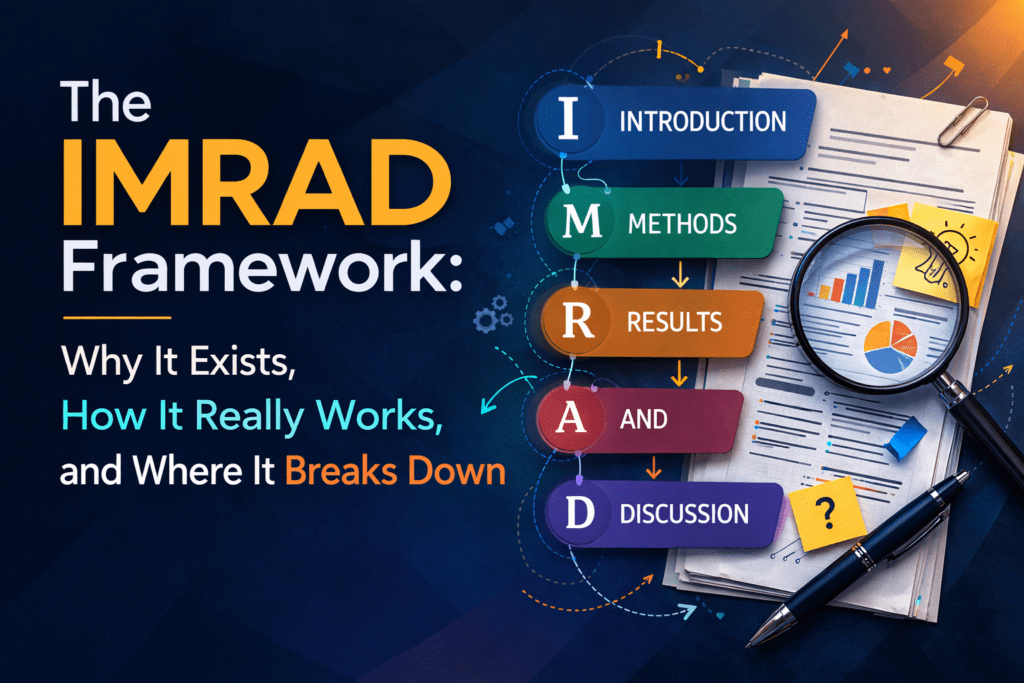
The IMRAD Framework: Why It Exists, How It Really Works, and Where It Breaks Down
Cluster Post 1 | Module 1: Understanding the Structure of Research Papers and Theses From…

How to Write a Research Introduction That Reviewers Cannot Ignore
Cluster Post 2 | Module 1: Understanding the Structure of Research Papers and Theses From…

How to Write a Methods Section That Reviewers Will Trust
Cluster Post 3 | Module 1: Understanding the Structure of Research Papers and Theses From…
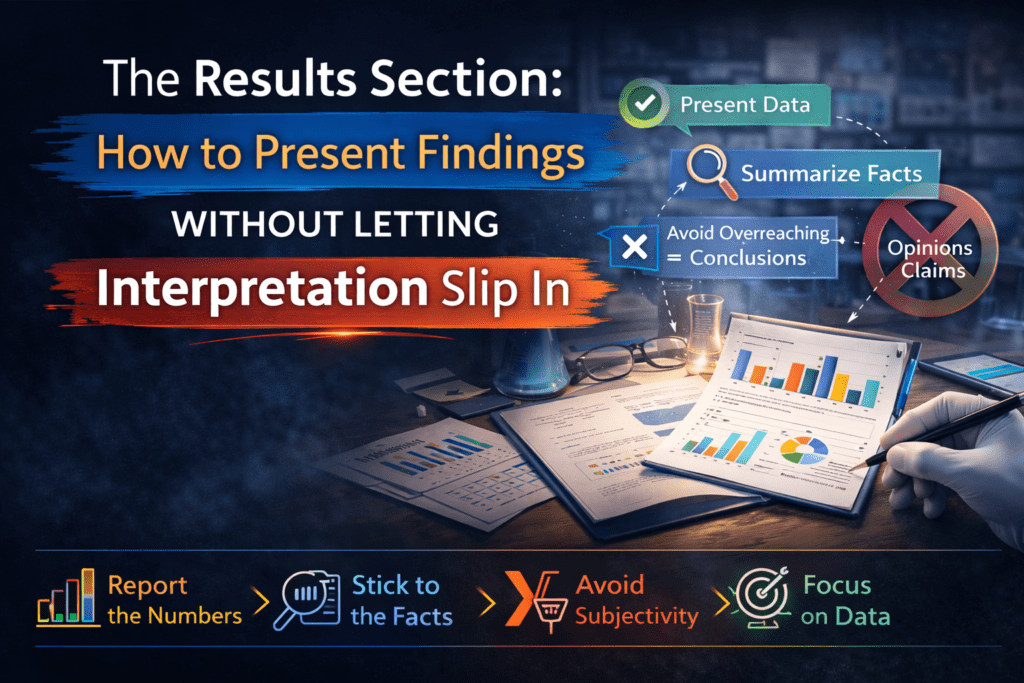
The Results Section: How to Present Findings Without Letting Interpretation Slip In
Cluster Post 4 | Module 1: Understanding the Structure of Research Papers and Theses From…

The Discussion Section: How to Turn Findings Into Knowledge
Cluster Post 5 | Module 1: Understanding the Structure of Research Papers and Theses From…
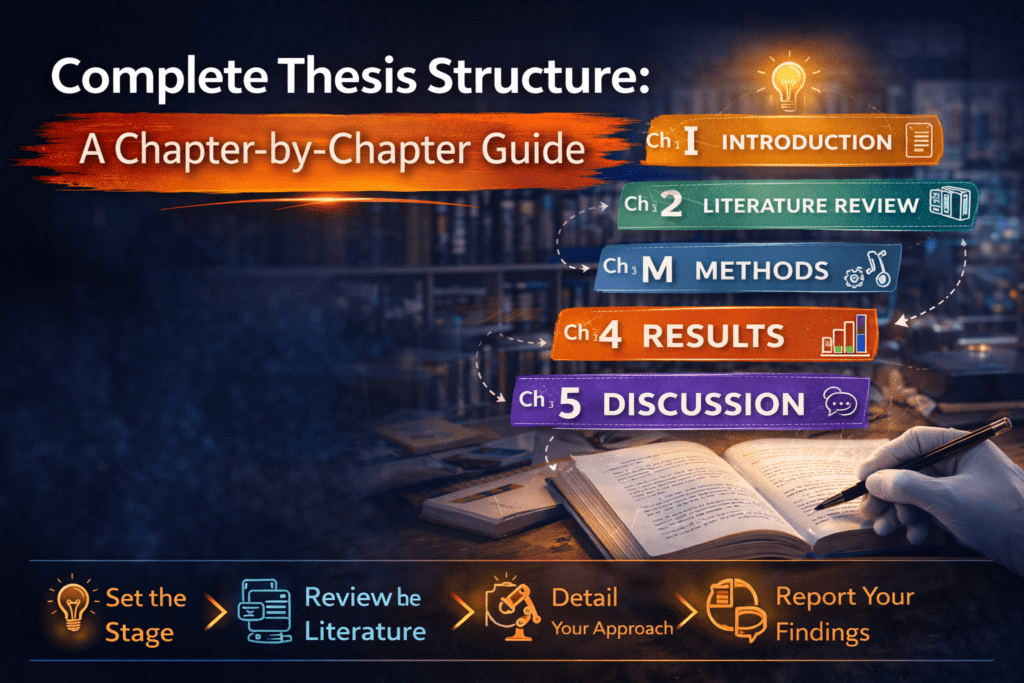
Complete Thesis Structure: A Chapter-by-Chapter Guide
Cluster Post 6 | Module 1: Understanding the Structure of Research Papers and Theses From…

10 Structural Mistakes That Get Research Papers Rejected — And How to Fix Every One
Cluster Post 7 | Module 1: Understanding the Structure of Research Papers and Theses From…

The Academic Writing Process: Complete Guide from First Draft to Submission (2026)
From Concept to Submission: A Complete Guide to Research Paper and Thesis Writing Module 2,…
How to Start Writing — and Keep Going
Cluster Post 1 | Module 2: The Academic Writing Process From Concept to Submission Series …

How to Write Clear Engaging Academic Prose
Cluster Post 2 | Module 2: The Academic Writing Process From Concept to Submission Series …
The Revision Process: How to Turn a Draft Into a Submission
Cluster Post 3 | Module 2: The Academic Writing Process From Concept to Submission Series …
Citation Styles Explained: APA, MLA, Chicago, IEEE, and Bluebook
Cluster Post 4 | Module 2: The Academic Writing Process From Concept to Submission Series …
Reference Management: Zotero and Mendeley from Setup to Submission
Cluster Post 5 | Module 2: The Academic Writing Process From Concept to Submission Series …
Research Methodologies: Complete Guide to Quantitative, Qualitative, Mixed Methods & Legal Research (2026)
Why Methodology Determines Research Quality Here’s what thesis examiners focus on first: your methodology section…